
I was recently gifted a new iPad (11” A16), and being an Android guy I was reluctant to use it.
Since my first smart phone and tablet in 2013 – Moto X and 7” Galaxy Tab, I have been all in on Google apps and services. Gmail, Calendar, Docs, Sheets, Maps, etc. I use Google Keep to save almost everything from notes, lists, recipes, and websites. I was worried about moving even one device to Apple.
The only Apple device I’ve ever owned was my iPod Classic (it’s for sale on eBay).
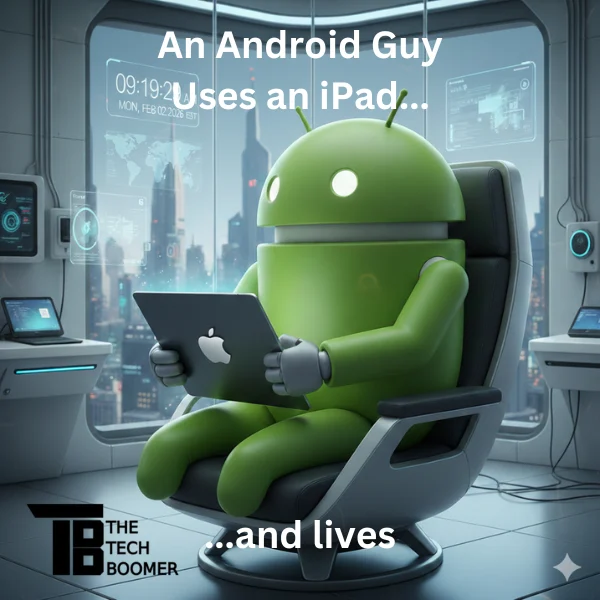
How did I get a new iPad?

TOZO T10 Wireless Bluetooth Earbuds
The Tech Boomer recommends these wireless bluetooth earbuds. Clear, crisp sound—plus they’re easy on the wallet!
View on Amazon →This post may contain affiliate links. As an Amazon Associate, I earn from qualifying purchases.
My local newspaper, the AJC, recently ceased their print edition. As of 1/1/26 they are all digital. Now, I have been reading digitally for probably 10 years, only receiving the print edition on Sunday, so the change to all digital wasn’t a big deal to me.
Since I have been a subscriber to the AJC for probably around 35 years, I received an offer from them for an iPad. I was expecting an older model, so I was surprised when it turned out to be the latest one. They also included an $85 cover (Apple is proud of their accessories, like this $230 iPhone sock).
My first inclination was to sell it, but then I thought I would try it out.
My Current Devices
My current phone is a Pixel 7, and my tablet is an over 5 year old Lenovo Tab M10. Since my tablet is on its last legs, crashing and freezing periodically, I have been checking out what’s available.
My tablet serves just a few duties for me. I read the paper on it, also a few daily newsletters I receive to stay current on what’s going on in the world. And in the evening if my wife and I want to watch different things on TV, my tablet serves as my television. That’s pretty much all I use it for.
My Reluctance About Apple
Being an Android guy, I’m not a big follower of Apple. Mostly from what I hear from the tech podcasts I listen to, Apple isn’t really big on allowing customization, and it seemed that Apple wanted their users to be all in on Apple services. But I was in the market for a new tablet, and I had a brand new iPad sitting right here, so I figured what the hell, let’s take it for a spin and see what it can do.
I do know that Apple has eased restrictions on some things, like setting a default browser besides Safari. But as far as being all Google on an iPad, I wasn’t so sure.
One Week With An iPad
I’ve been using it for a week now. Here’s my thoughts:
Setup
I fired it up. Of course I had to sign in with an Apple ID. I still had my old iTunes account which I had to reactivate, but that wasn’t a big problem. Then I immediately started installing my Google apps. I saw that there was an app that I could install on my current tablet to move my Google apps to my new iPad, but I wasn’t sure what it would do, so I decided to install them one by one myself. It was pretty simple. Apple didn’t complain much about changing defaults, not nearly as much as Microsoft does on my desktop and laptop PCs.
Performance
My first impression was that it’s pretty snappy, especially compared to my old tablet, probably about the same as my phone. I wasn’t sure if it was the operating system, or the fact that it was a newer, faster chip and more memory (6 GB compared to 4 on my old tablet).
I did some comparisons on benchmark tests between the chip in my old tablet and the iPad. The iPad chip comes out hundreds of times faster than the Lenovo chip. That’s a big improvement. I didn’t realize how slow my old tablet was until I started using the iPad.
User Interface
I was afraid that the UI would be very different from Android, so I was pleasantly surprised to find out that there weren’t a lot of differences.
- Swipe up to unlock.
- Swipe up to go home.
- Swipe left or right at the bottom to move between apps.
- Swipe right to go back, although that doesn’t work universally.
- Pull down for notifications.
- Pull up for recent apps.
I wasn’t seeing a quick settings shortcut like Android has, where when you pull down, there’s four quick settings on top of the notifications, and if you pull down again there’s more. I looked it up and found that you need to pull down from the top right corner. Not a real big difference.
And I do like the slow swipe up to bring up the dock. And the split screen availability, but the latest version of Android for tablets also has that. I’m running Android 10 on my tablet, six versions behind.
But overall, there isn’t much difference to get used to.
Customization
I don’t do a lot of customization on my tablets, as I don’t interact with them as much as I do my phone, but I played around, seeing what I could do.
Home Screen
What I’ve seen on most people’s iPads and iPhones is a home screen full of apps. Rows and rows of apps. I’m not a fan of that. I like a fairly clean home screen, with my apps either in folders, or all in my app drawer.
I wasn’t sure that I could change that, but I found out that’s not an issue. I can delete what I want off of my home screen, and also make folders to put various apps in.
Launcher
I know you Apple users, and probably most Android users, don’t know what I’m talking about here, but the launcher is the main interface on the device, what you interact with on the screen.
Android (at least Google’s Pixel line) allows the use of third party launchers. Not Apple. The iPadOS launcher is all you get.
App Library
Apple has an App Library, which is a bit different from Android’s App Drawer. I initially liked the setup of it, with apps already placed in folders instead of a grid of apps like on Android (which can be changed with the use of a third party launcher). But It was after I attempted to move them around to where it made more sense to me (why isn’t Amazon in “Shopping” or Files in “Utilities”?), I was disappointed to find out that wasn’t allowed. The Apple knows where they should go, so get used to it.
I do like the ability to directly launch any of three apps in a folder without opening the folder, but I found out that I cannot decide which three apps are allowed, Apple decides that for me.
There is a search bar if you don’t know what folder the app you’re looking for is in. It also brings up an alphabetical list of the apps with an index bar on the side, so it’s pretty easy to find what you want.
I can also make my own folders with the apps I choose on my home screen.
Wallpaper
Changing wallpaper was about the same as Android, allowing imported photos and designs along with their stock images. Although I wasn’t able to directly import photos from, say, my Google or network drive. I had to first download them to the tablet. And the few I tried didn’t look too good, probably the resolution of the photos. I then downloaded some higher resolution photos and they looked better.
But I use KLWP on Android, where I can create my own “live” wallpaper. That’s not allowed on the iPad.
Widgets
I did remember that Apple started allowing widgets a few years ago, so I looked to install some. I was surprised to find out that they allow 3rd party widgets, but only from installed apps.
Like with the wallpaper, I use KWGT to make my own widgets for my phone and old tablet, again, Apple says “no.”
But like I said, since I don’t do a lot of customization on my tablets, the lack of “real” customization on the iPad isn’t a big deal.
Sound
Android has many stock sounds for ringtones, notifications, etc,, which I see that Apple also has, but not as many. Android, however, allows users to download sound files and use them for various tones, something that I don’t see that Apple allows. I do see where users can buy tones through the Apple store for $1.29 each, but why would I do that when I can make my own? I don’t see where I can use my “Star Trek” sounds on my iPad.
File Management
Android has a stock file manager, but I use a third party one, File Manager +, which allows me to use one app to see not only the files on my phone or tablet, but to also connect to the files in my Google drive, plus my desktop PC, and the external data drive connected to it. I can also work with my network drive, which is connected to my router, available to any device on the network.
File Manager + isn’t available on the iPad, I don’t know if that’s the developer’s decision or Apple’s. But I was pleased to find that the native “Files” app allows me to connect to all those services. Although not as robust as File Manager +, it will suffice.
Apps
Besides File Manager +, I haven’t yet found any apps that I use on my old tablet that aren’t available for the iPad.
Some do act a bit differently, though. Chrome, for example. Some functions are in a different place, so it does take some getting used to.
I haven’t installed everything yet, so I’ll update this if I find anything significant.
Bottom Line
I’m impressed with the iPad’s speed and the fact that I can basically use it like an Android tablet. But would I switch from Pixel to iPhone for my next phone? That answer is no. While I’m sure that the iPhone will be snappy and fast, I’m also sure that my next Pixel, whether it’s the current 10, or the 11 when it comes out, will be also. It’s the lack of customization that throws me off.
While my tablet is my “lean back” experience (reading and viewing video), my phone is that, plus a “lean forward” device that I interact with in a different manner (email, chatting, messaging, social media, etc.). I also want the ability to choose my launcher, use my tones, and customize my app drawer. And I want the ability to create my own live wallpaper and widgets.
So for me, I will use this iPad as my Google tablet, and probably recommend it to my wife when hers plays out, as it’s just a bit younger than mine.
But for phones, I will always be an Android guy.
As always, if you have a question about this or any other post, please leave a comment below, or you can email me at larry@thetechboomer.com.

OTC Hearing Aids for Seniors
OTC Hearing Aids for Seniors, Hearing Aid Amplifiers Devices Rechargeable with Noise Cancelling, Superior Sound Quality for Adults Women Men Hearing Loss, Auto On/Off
View on Amazon →This post may contain affiliate links. As an Amazon Associate, I earn from qualifying purchases.