
Ever stand up from your computer after an hour of browsing, checking emails, or sorting through photos and realize your neck feels stiff, your wrist is throbbing, or your lower back is completely aching?
You are definitely not alone—and you shouldn’t have to just live with it.
Many of us are spending more time at our desks than ever before. The problem isn’t the screen time itself; it’s that standard computer accessories and home office setups just weren’t designed with the human body in mind. We force our joints, muscles, and eyes to adapt to the machine, rather than making the machine adapt to us.

TOZO T10 Wireless Bluetooth Earbuds
The Tech Boomer recommends these wireless bluetooth earbuds. Clear, crisp sound—plus they’re easy on the wallet!
View on Amazon →This post may contain affiliate links. As an Amazon Associate, I earn from qualifying purchases.
The good news? You don’t need to spend a fortune on a fancy, complicated standing desk or a thousand-dollar office chair to get some relief. By making a few budget-friendly adjustments to your workspace, you can completely eliminate that daily physical strain.
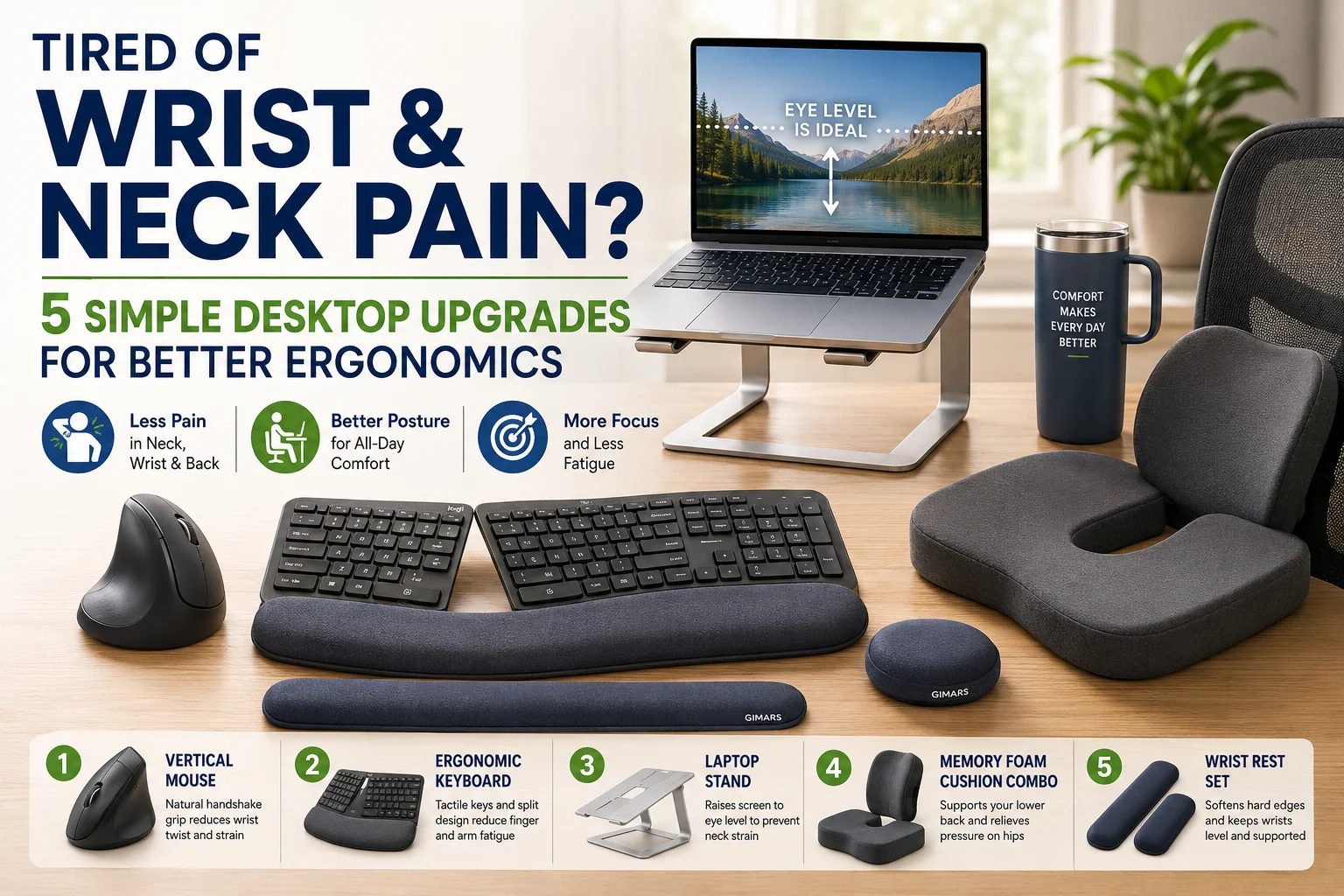
Here are five simple desktop upgrades that will transform your computing experience from painful to perfectly comfortable.

The Quick Comfort Guide
If you’re in a hurry to fix a specific ache, here is a quick look at my top recommended upgrades to instantly make your desk more comfortable:
| Trouble Zone | The Comfort Solution | Key Benefit |
| Wrist & Forearm | Vertical Ergonomic Mouse | Stops wrist compression and twisting |
| Finger & Joint Fatigue | Tactile Mechanical Keyboard | Requires less typing pressure; easier to see |
| Neck & Shoulder | Adjustable Laptop Stand | Raises screen to eye level to stop slouching |
| Lower Back & Hips | Memory Foam Cushion Combo | Adds thick, orthopedic support to any chair |
| Resting Pressure | Foam Wrist Rest Pads | Softens the hard, sharp edges of your desk |
1. Swap Your Mouse for a “Handshake” Grip
If your wrist or forearm throbs after a few minutes of moving your cursor, take a look at your hand right now. A standard computer mouse forces your palm to face completely flat against the desk. To do this, the two bones in your forearm have to cross over each other, compressing the nerves and tendons in your wrist.
The fix is a vertical ergonomic mouse. These mice look a little unusual at first, but they are shaped so your hand rests in a natural, neutral “handshake” position. This completely removes the twist in your forearm and stops you from rubbing your wrist bone against a hard desk surface. It glides with minimal effort, saving your joints from unnecessary micro-movements.
- Premium Pick: Logitech MX Vertical Wireless Mouse — This is the gold standard for wrist support. It features a deeply contoured thumb rest and a relaxed 57-degree angle that eliminates muscular strain by 10 percent.
- Budget Pick: Anker Wireless Ergonomic Vertical Mouse — An incredible, highly affordable alternative that gives you that exact same comfortable handshake grip without breaking the bank.
2. Upgrade to a Tactile, High-Visibility Keyboard
Most computers come with cheap, flat, plastic keyboards. Because the keys have almost no “travel” (depth), your fingers take a tiny shock every time you press down and hit the hard plastic bottom. Over a long typing session, this creates significant fatigue in your finger joints. Furthermore, small, faded lettering forces many of us to lean forward and hunch our shoulders just to see what we are typing.
Upgrading to a keyboard with cushioned, tactile keys or a split ergonomic layout completely changes the game. A split keyboard angles the keys so your hands point slightly outward, matching the natural angle of your arms. Look for options with deep keys that give a soft, satisfying bounce—allowing you to type with a much lighter touch. Large-print, backlit keys are also an excellent bonus to prevent eye strain in low light.
- Best Ergonomic Split Keyboard: Logitech Ergo K860 Wireless Split Keyboard — Features a curved, split keyframe and a luxurious pillowed wrist rest that reduces forearm twisting and provides 54 percent more wrist support.
- Best High-Visibility Option: SABLUTE K21 Pro Large Print Backlit Keyboard — If you struggle with small letters, this keyboard features keys with extra-large text and gentle backlighting so you can sit back comfortably without straining your vision.
3. Lift Your Screen with an Eye-Level Laptop Stand
Laptops are a wonderful invention for portability, but they are an ergonomic nightmare for long-term desk use. Because the screen is permanently attached to the keyboard, it sits far too low. Looking down at a laptop screen forces your neck to tilt forward, which makes your neck muscles hold up the equivalent of a 60-pound bowling ball. This is the root cause of upper-back knots, shoulder tension, and tension headaches.
The solution is an adjustable laptop stand. This simple piece of aluminum lifts your laptop off the desk so that the top edge of your screen sits exactly at eye level. This allows you to sit completely upright, keeping your head balanced safely over your spine.
Important Golden Rule: Once you lift your laptop on a stand, you must use a separate external keyboard and mouse on the desk surface below. Never try to type on a laptop keyboard while it is raised up in the air, or you will cause severe strain to your wrists and shoulders!
- My Top Recommendation: Soundance Aluminum Laptop Stand — A sturdy, elegant riser that fits virtually all laptop sizes, stops your computer from overheating, and elevates your screen by six inches to perfectly match your eye level.
4. Save Your Lower Back with Memory Foam Cushions
Buying a high-end office chair can cost hundreds of dollars, and assembling them out of a giant box of random screws is rarely a fun afternoon project. But sitting on a sagging old chair—or worse, a hard dining room chair—destroys your posture, flattening the natural curve of your spine and compressing your tailbone.
Instead of replacing the whole chair, you can completely overhaul it with a two-piece memory foam support kit. This includes an orthopedic seat cushion with a “U-shaped” cutout to relieve pressure on your tailbone, and a contoured lumbar support cushion that snaps onto the backrest to keep your spine properly aligned. It instantly turns the hardest, least supportive household chair into a comfortable, posture-protecting seat.
- Best Overall Cushion Combo: Everlasting Comfort Memory Foam Seat Cushion and Lumbar Support Combo — Made from pure, heat-responsive memory foam, this duo molds perfectly to your body shape to alleviate lower back pressure and sciatica discomfort during long sitting sessions.
5. Soften the Edges with a Desktop Wrist Rest Set
Take a look at where your wrists rest when you type or use your mouse. Are they pressed firmly against the hard, sharp edge of a wooden or plastic desk? This constant pressure compresses the delicate blood vessels and tendons on the underside of your wrist, cutting off circulation and causing numbness or tingling over time.
A matching memory foam or cooling gel wrist rest set provides a soft buffer between your body and the desk. One pad sits perfectly in front of your keyboard, while a smaller pad supports your mouse hand. This evenly distributes the weight of your arms and keeps your wrists completely level, rather than bent backward.
- Best Value Set: Gimars Memory Foam Keyboard and Mouse Wrist Rest Support Set — An exceptionally comfortable, non-slip set covered in breathable fabric that won’t get sweaty or lose its shape over time.
Summary: Your 30-Second Desk Checklist
Making your desktop comfortable doesn’t require a major lifestyle change. Once you have your new accessories in place, take 30 seconds to run through this simple ergonomic checklist to make sure your joints are getting a break:
- Eyes: Is the top third of your monitor directly in line with your eyes? (If not, raise your stand).
- Elbows: Are your elbows relaxed at a comfortable 90-degree angle close to your sides?
- Feet: Are both of your feet resting completely flat on the floor?
Computing should be a window to connecting with family, managing your projects, and enjoying your hobbies—it shouldn’t leave you feeling like you need a massage. Swap out your oldest, flattest accessory this week, and your body will absolutely thank you for it!
Disclaimer: TheTechBoomer is a participant in the Amazon Services LLC Associates Program, an affiliate advertising program designed to provide a means for sites to earn advertising fees by advertising and linking to Amazon.com. If you purchase an item through our links, we earn a small commission at no extra cost to you!

OTC Hearing Aids for Seniors
OTC Hearing Aids for Seniors, Hearing Aid Amplifiers Devices Rechargeable with Noise Cancelling, Superior Sound Quality for Adults Women Men Hearing Loss, Auto On/Off
View on Amazon →This post may contain affiliate links. As an Amazon Associate, I earn from qualifying purchases.